A keyboard-first Android launcher
Stop Scrollingand StartTyping
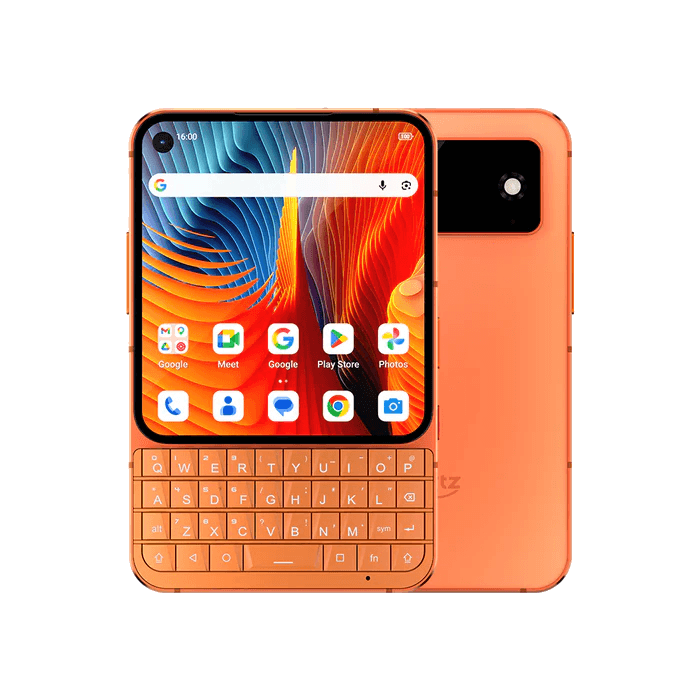
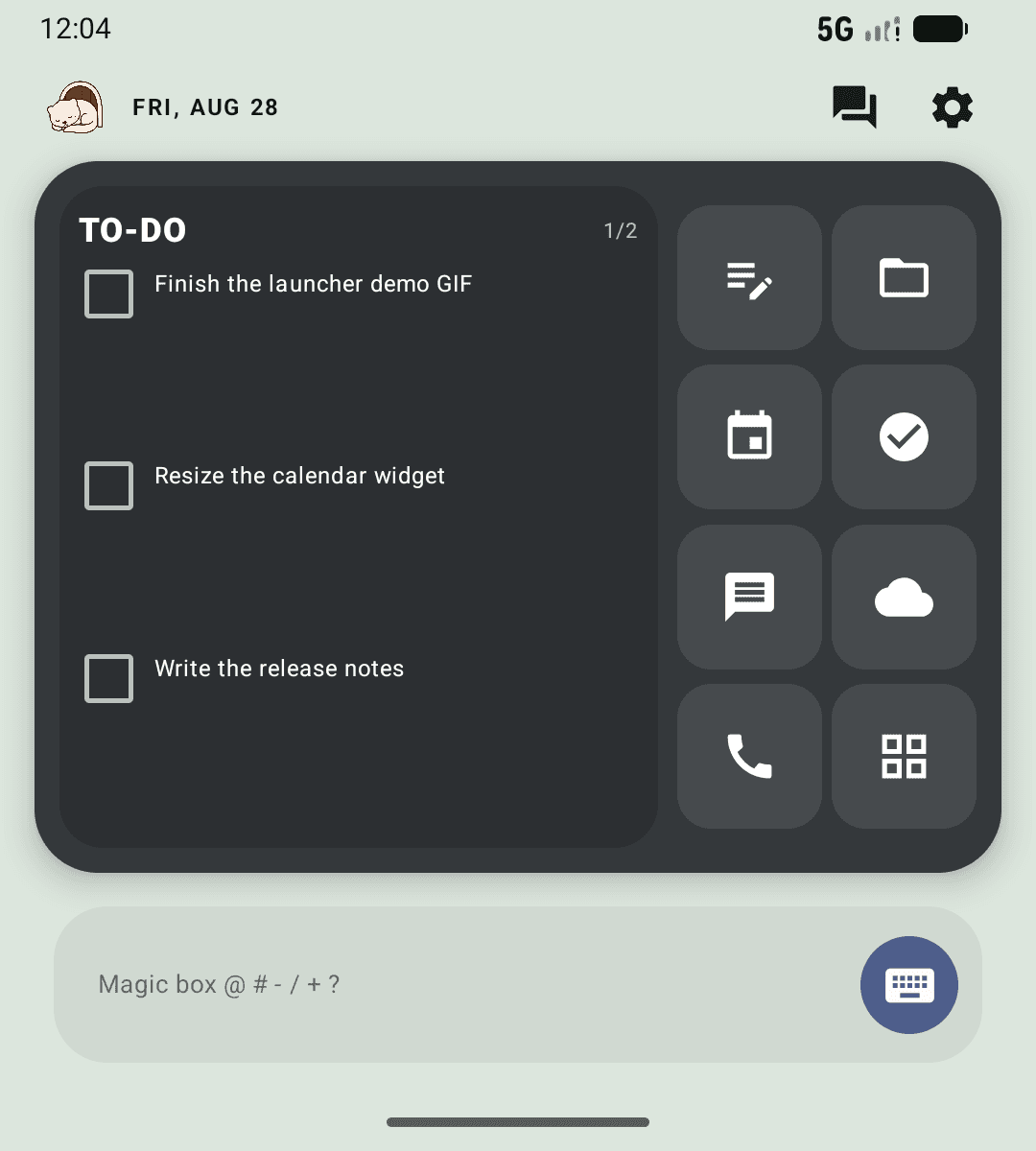
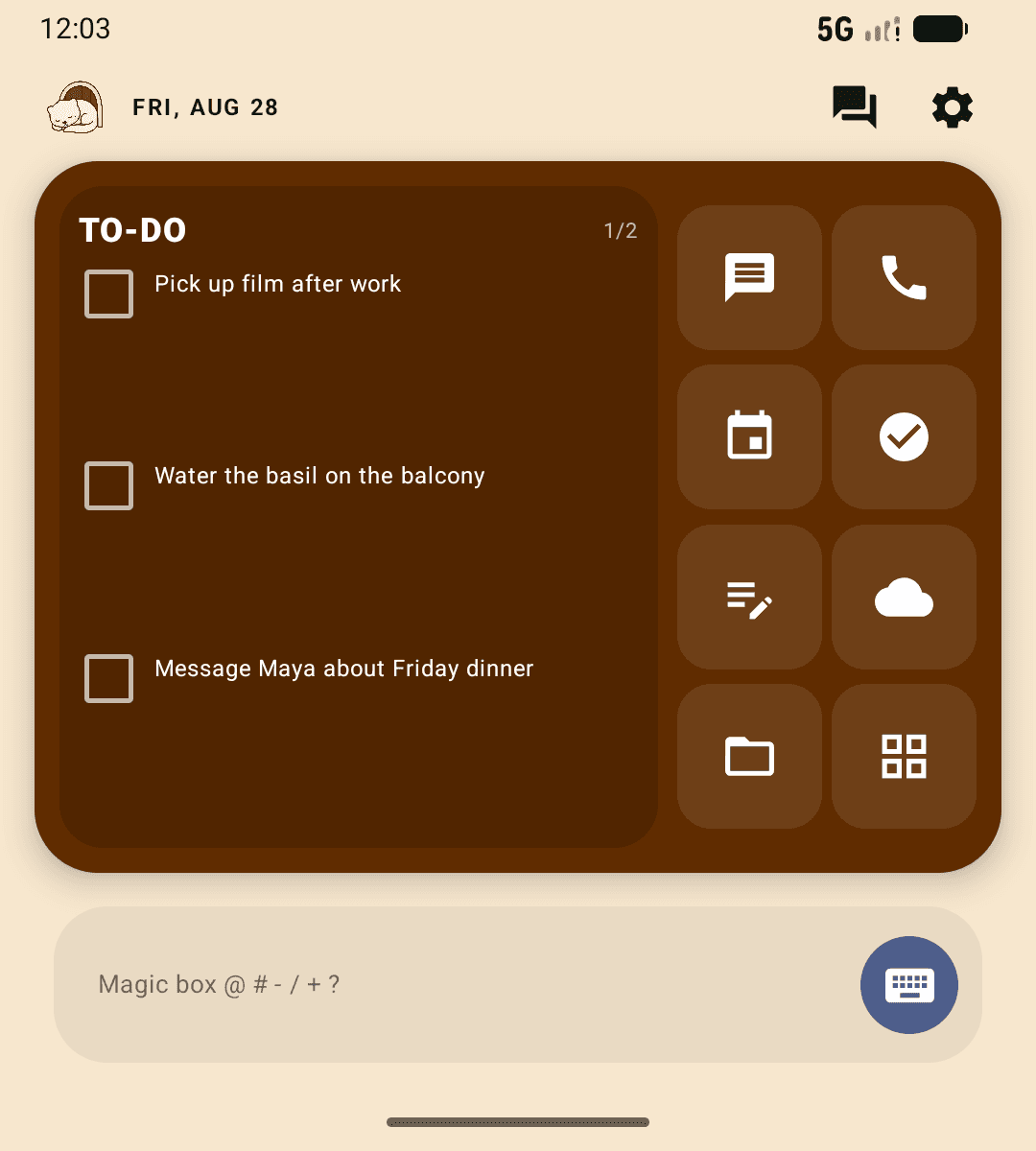
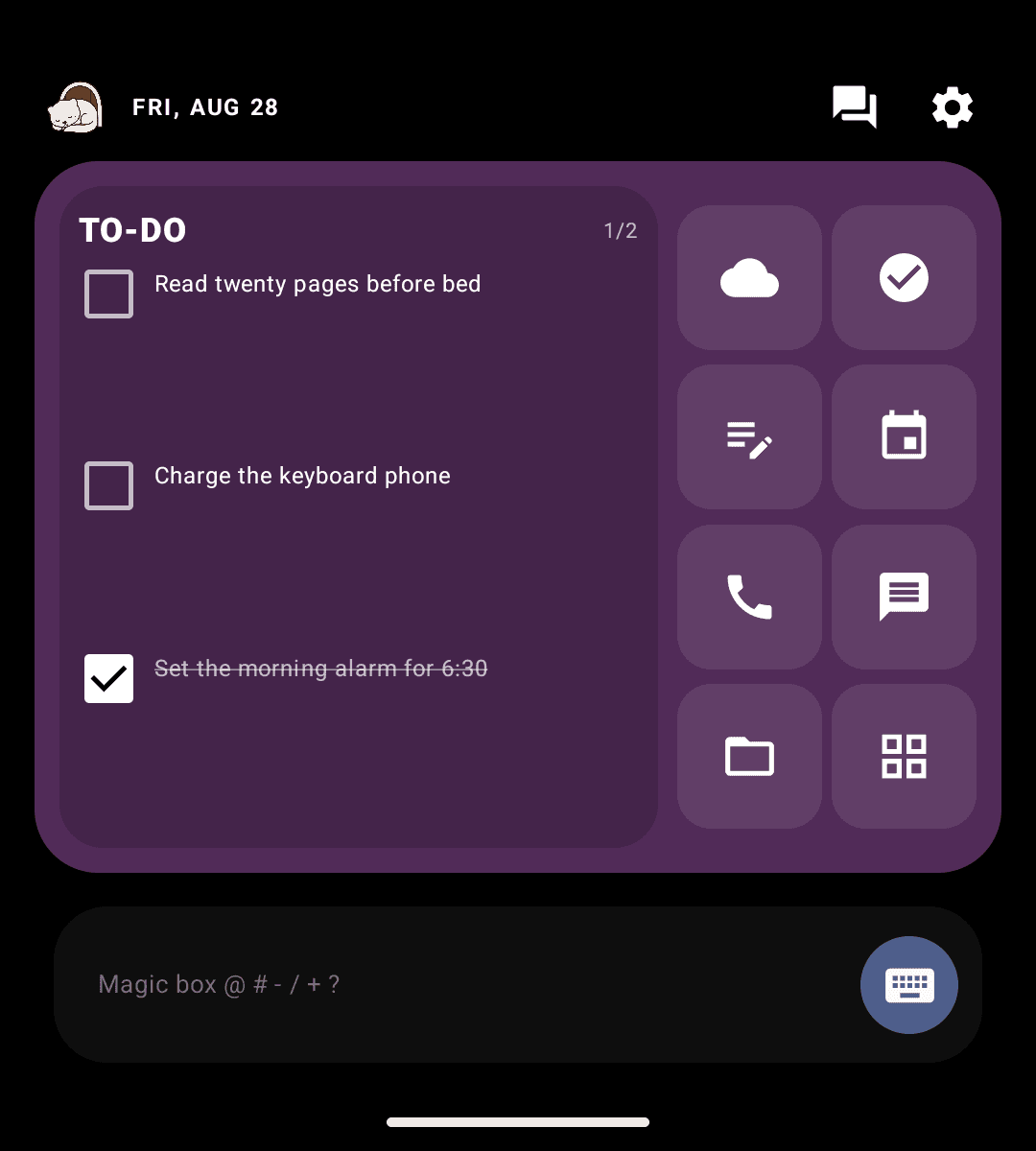
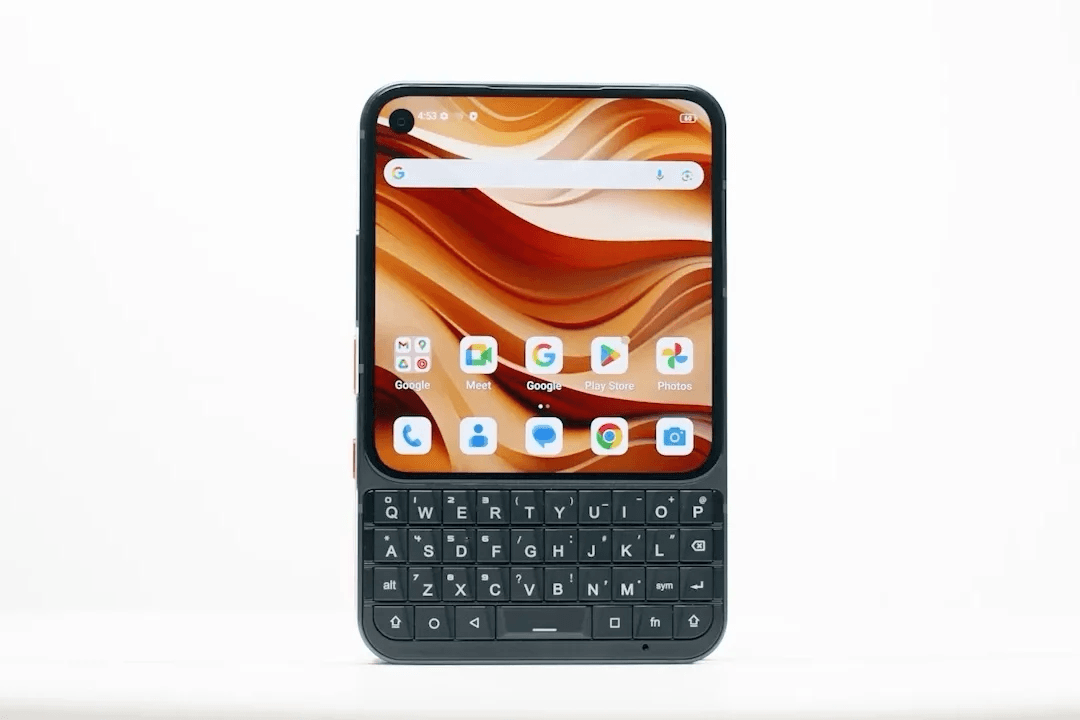
A launcher for phones with real keys. Press a key, find a person or app, do the thing, and get on with your day.
The Magic Box
Six keys.
Everything within reach.
Inspired by the upcoming and popular Minimal OS, start with a symbol so Mink knows whether you want to message, call, add a task, write a note, make an event, or open an app. Regular text can search the web, files, or your chosen AI provider.
Keyboard-first by design
Open the Magic Box and the command legend is already there. As soon as you start typing, it gets out of your way and shows only what matters.
- @ Message
- # Call
- − To-do
- / Note
- + Event
- ? App
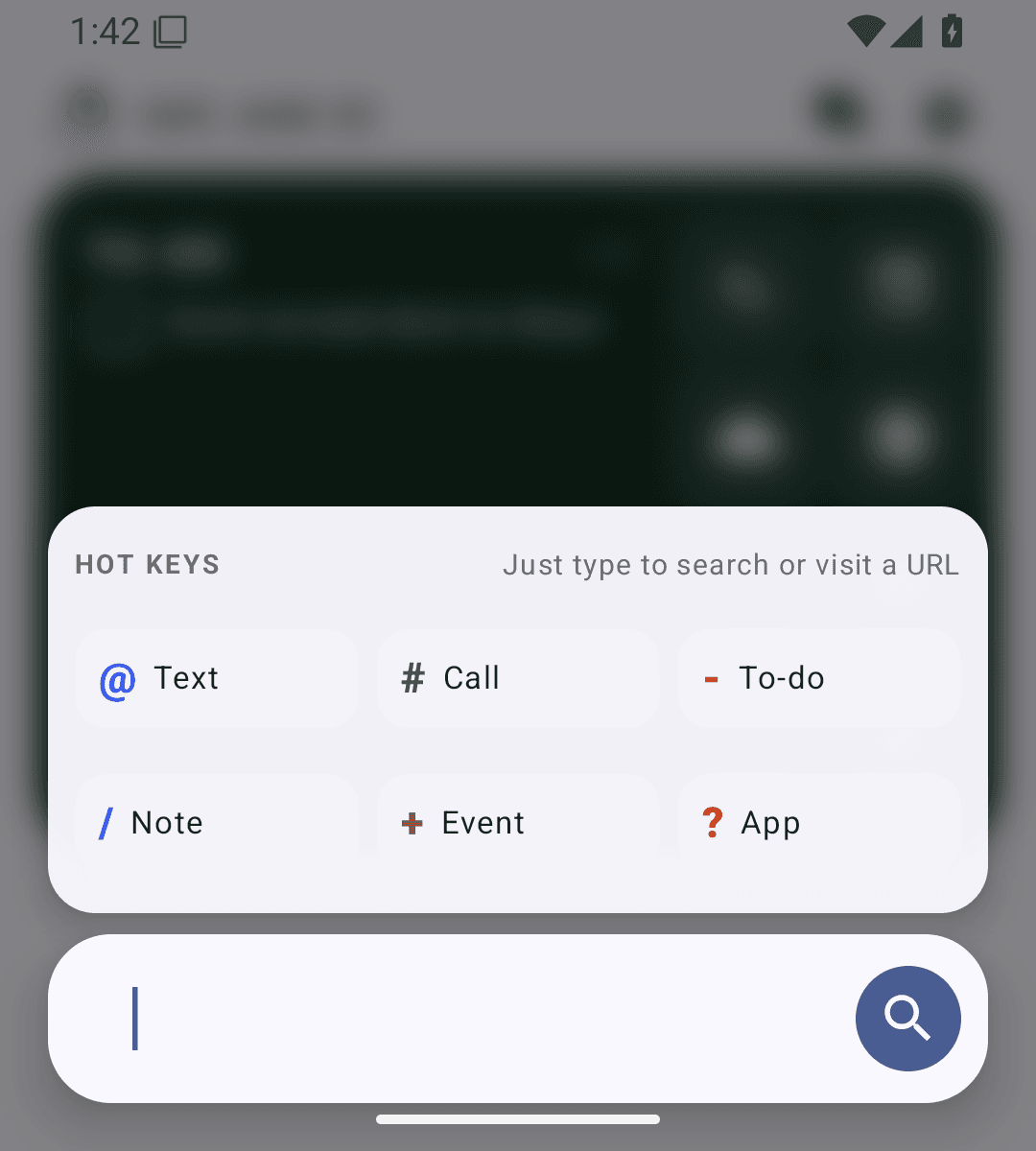
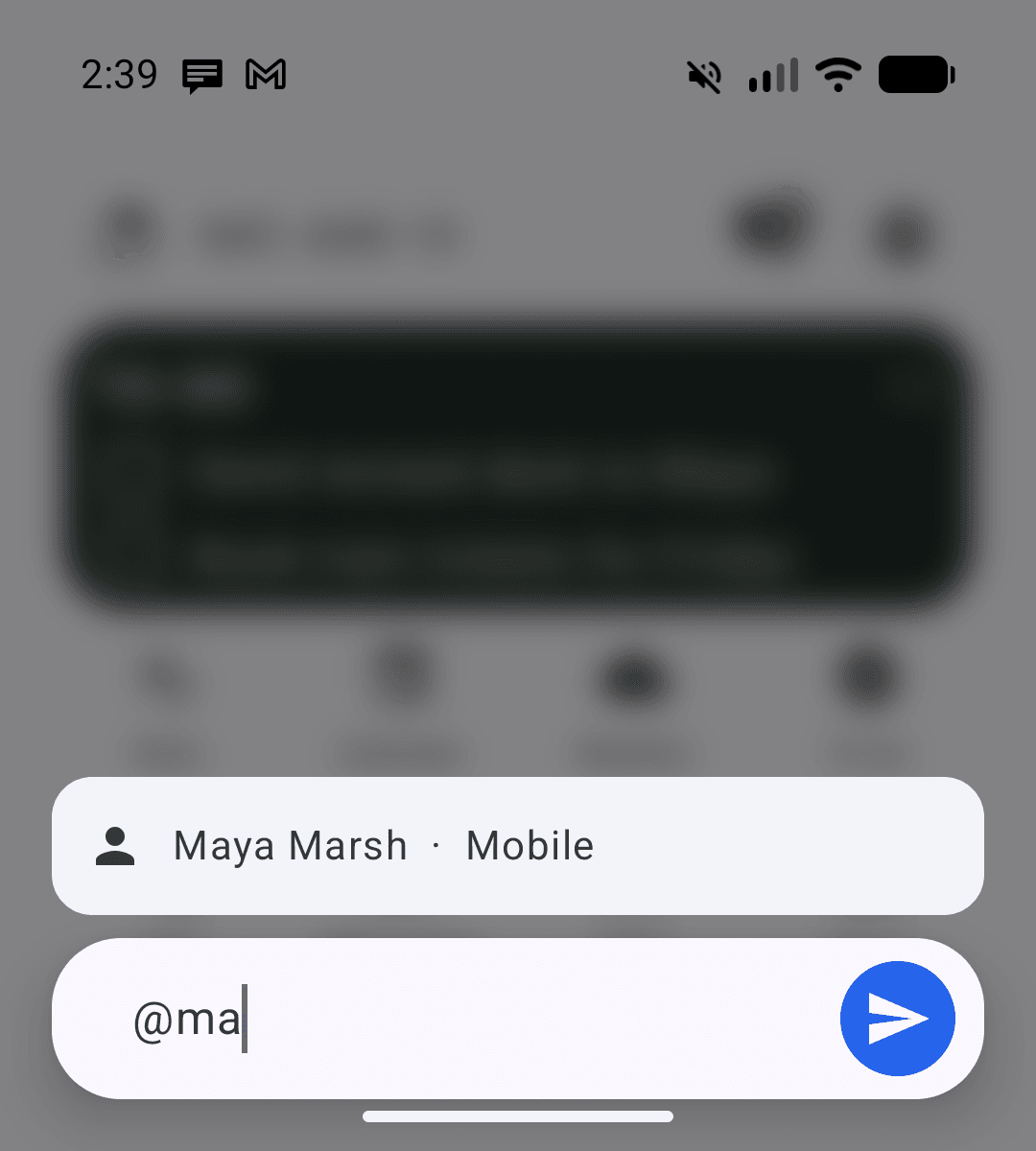
@ MessagePick a contact and write the message.
Mink Assistant
Bring the Magic Box over another app.
Set Mink as your Android assistant and use the same commands without going Home first. Mink does not read the screen, record audio, or send the current app's content anywhere.
You can change your default digital assistant again at any time.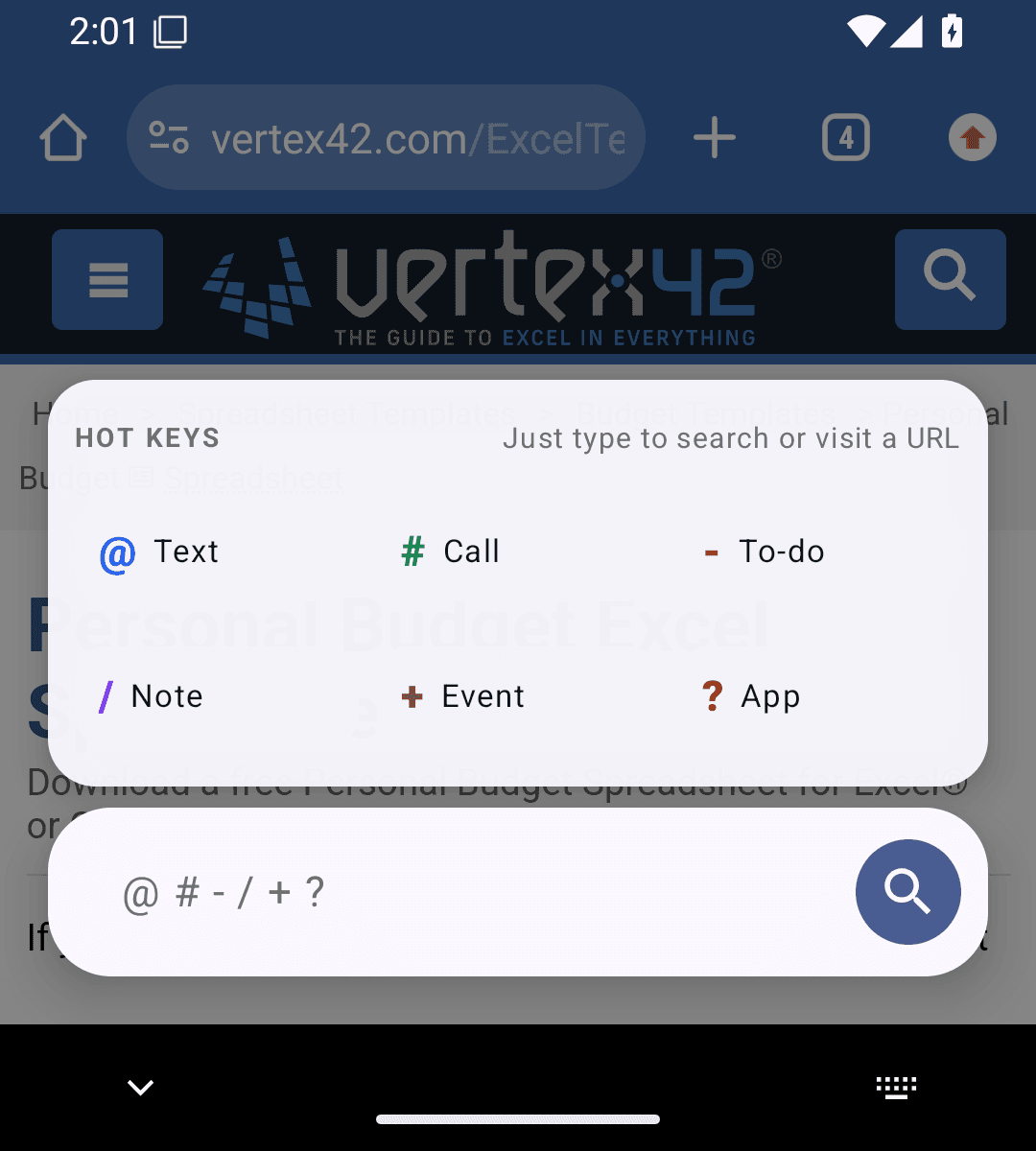
App integrations
Start in Mink.
Finish where you choose.
Choose where messages and questions go, or use Mink in the language that fits you. Providers own the final screen, delivery method, and privacy terms.
Integrated messaging
Start the message in Mink. Send it where you chat.
Type @, choose a contact or recent conversation, and write your message. Supported Android handoffs carry the draft and, when the provider allows it, the recipient into the app you chose.
- Send SMS through your chosen SMS or RCS provider
- Continue recent chats published by installed messaging apps
- Review the draft in the provider whenever direct sending is unavailable
 Google Messages
 WhatsApp
 WhatsApp Business
 Telegram
 LINE
LINE Beeper
 Nextcloud Talk
 Molly
Molly Signal
 KakaoTalk
 WeChat
 Viber
Viber Messenger
 Slack
Slack Teams
Teams Discord
 Snapchat
 GroupMe
 Zalo
Zalo TextNow
 TextFree
AI Hand-Off
Your question. Your provider. Your call.
MinkLauncher does not run a local model, connect to a remote model, or send your text to an AI API. It hands the query to the app you deliberately select.
- Choose a preferred provider during setup or later in Settings
- Your text stays in Mink until you tap AI
- Review and submit inside the provider you chose
 ChatGPT
 Claude
 Perplexity
 Microsoft Copilot
 DeepSeek
 Meta AI
 Google Gemini
 Lumo
LumoLanguage support
Mink can meet your phone in its language.
Follow Android's system language or choose a supported language just for MinkLauncher. Brand names including Mink, MinkLauncher, and Mink's Day stay in English.
- 15 translated interfaces, including right-to-left layouts
- Per-app language selection on Android 13 and newer
- Beta calendar parsing follows the selected Mink language when supported
More than an app grid
Make Home
do more.
Useful tools stay close without turning Home into another feed. Choose the pieces that fit your phone, your screen, and the way you work.
MinkSpace
Small tools, right inside Home.
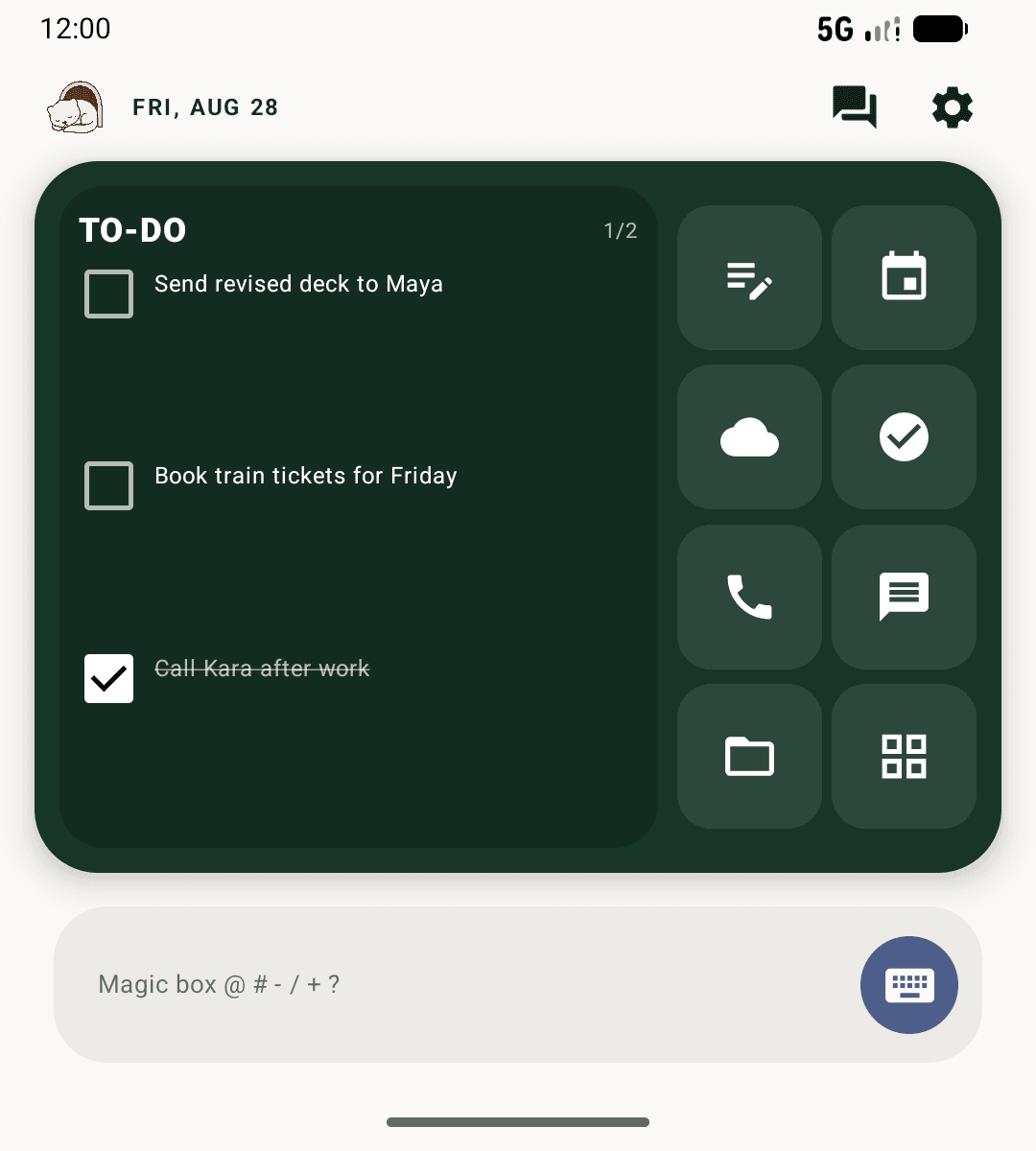
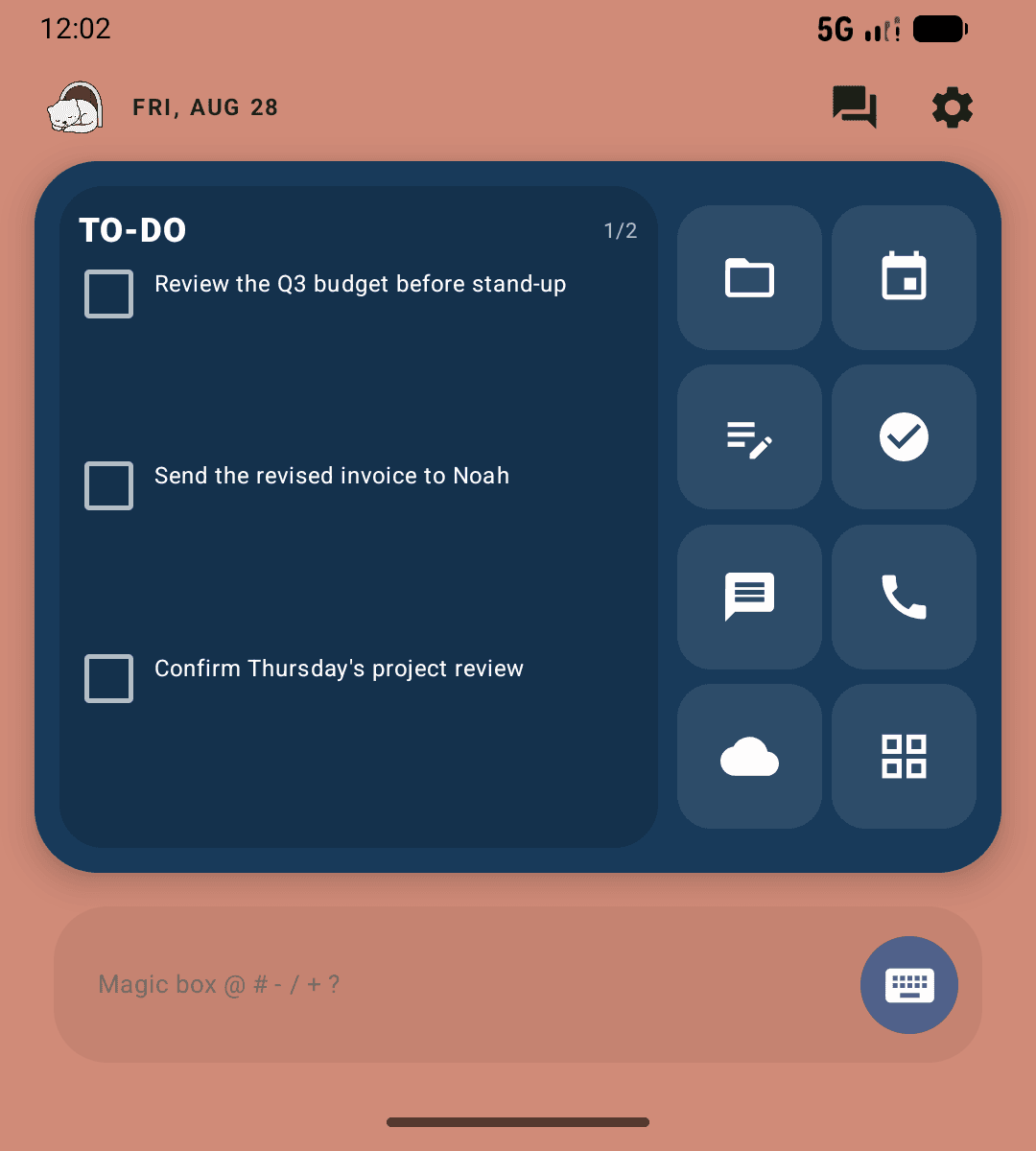
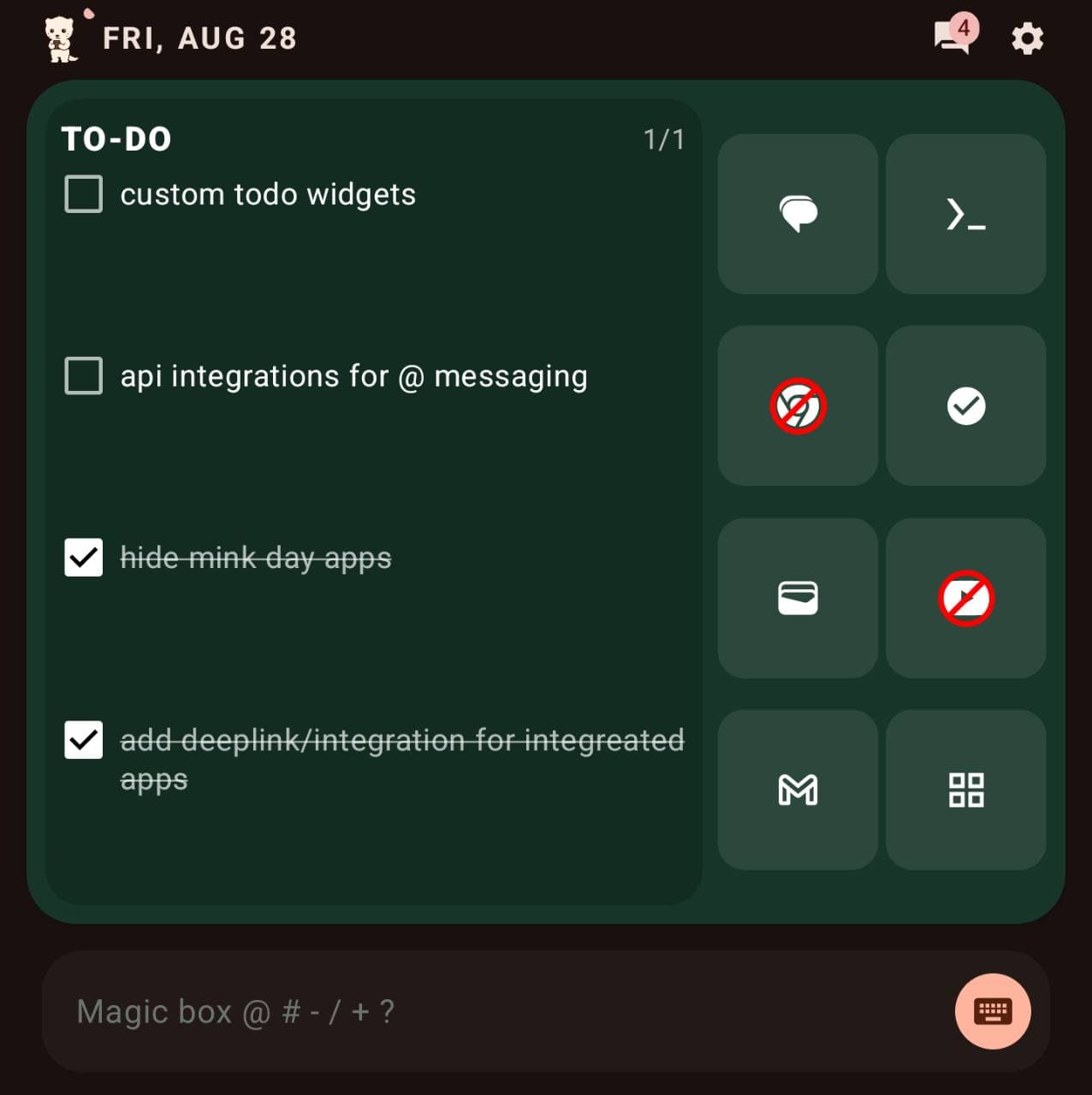
Swipe through focused mini-apps inside the Home pill. Keep your to-dos, use a calculator, pin local media, or control what is already playing without opening another dashboard.
- To-dos remain available in every setup
- Choose the other mini-apps and arrange their order
- Built as a reusable foundation for more tools later
To-dos, local media, calculator, and playback controls share one Home space.
Quick app switchingBeta
Try compatible apps in Android’s bubble stack.
Long-press an app result in the Magic Box to try opening it in a system bubble. Collapse it, keep working, and return without rebuilding your place.
Requires Android 11 or newer. Third-party apps control their own window and may open normally instead of remaining inside a bubble.Ask a question, open a tool in a bubble, and return with the answer.
Virtual Contact Card
Share who you are without creating an account.
Build a reusable vCard with the contact details and links you choose, then flip Home to show a scannable QR code. It is not an app profile and is not used for account management.
- Card data is encrypted on your device
- Nothing is sent to Mink servers
- You decide which values appear on the card and in its QR code
Flip Home, expand the QR code, and return without leaving the launcher.
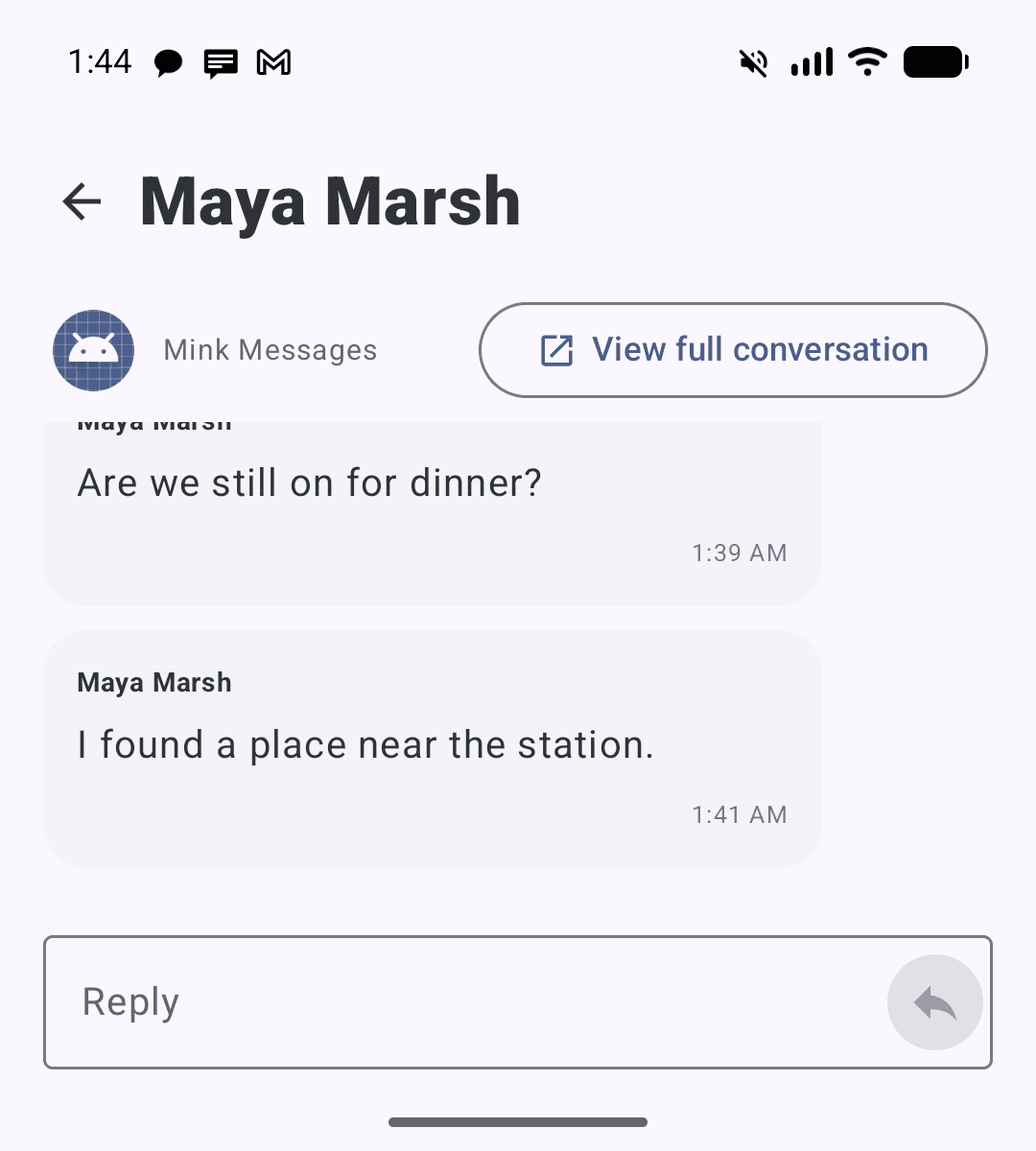
Conversation hub
See active conversations in one place.
Mink groups active message notifications by person. Read recent messages, reply when the original app provides a reply action, or open the complete thread in that app.
Notification access is optional and can be disabled at any time.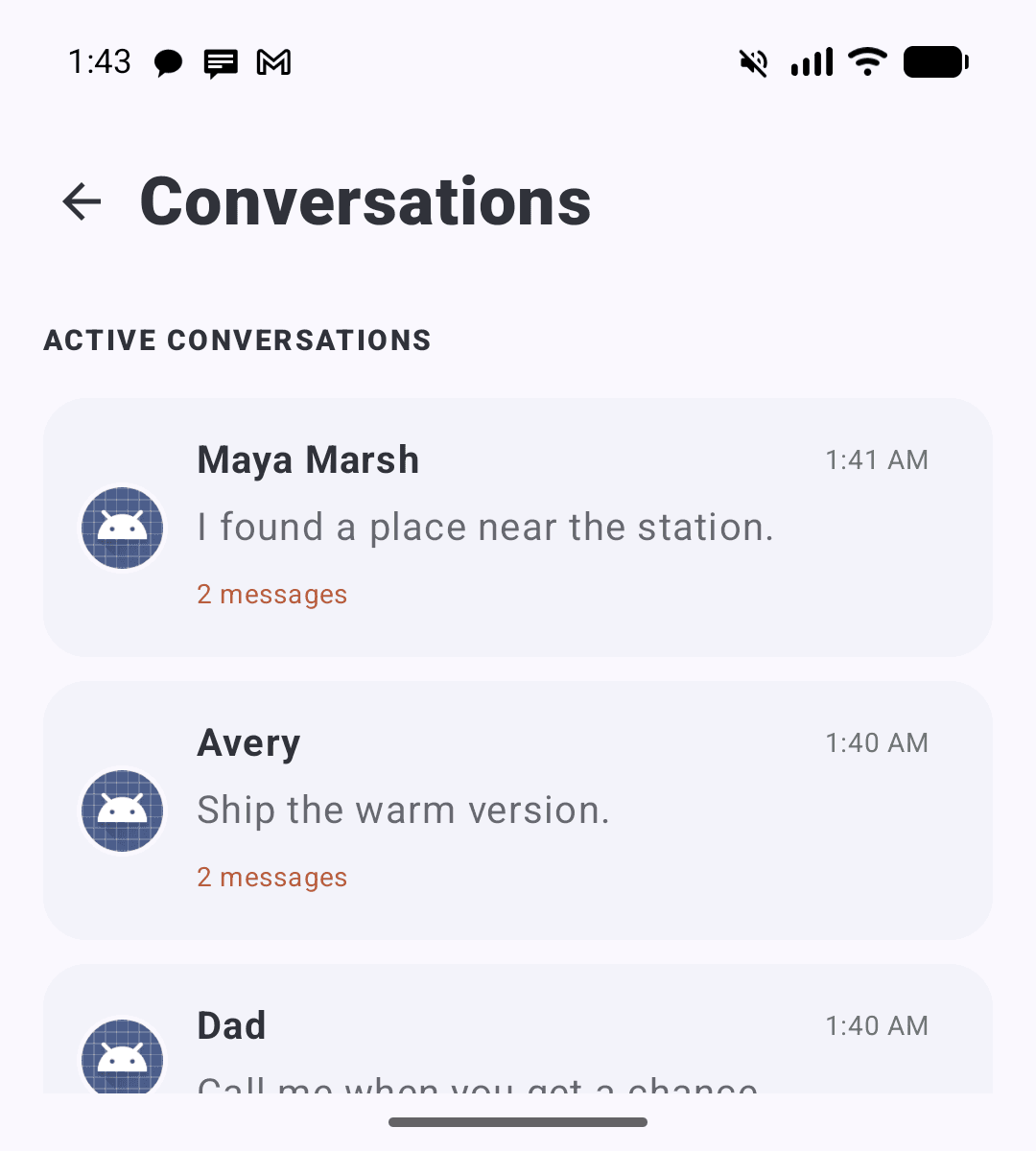
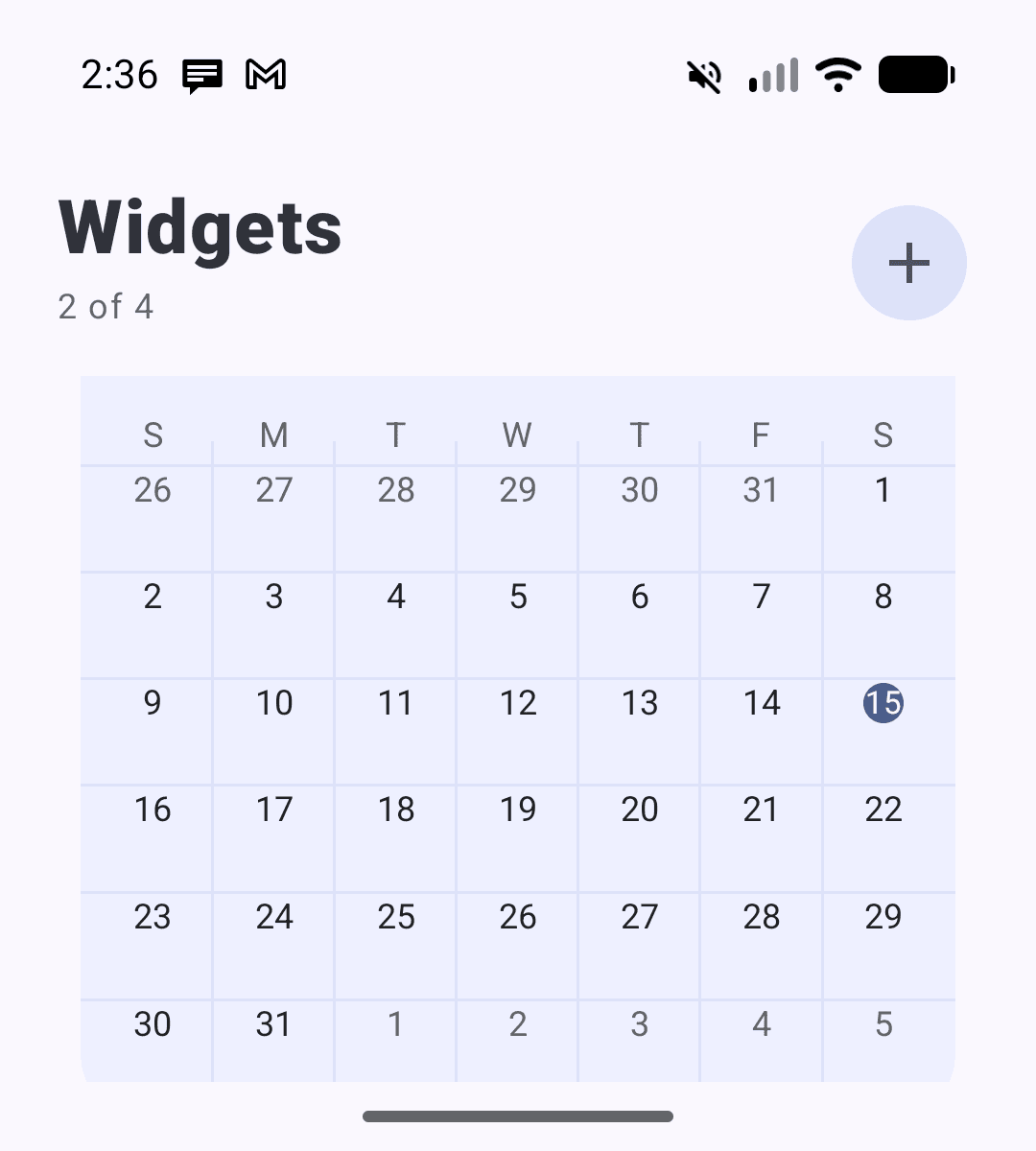
Android widgets
Your calendar can stay.
Add up to four Android widgets on their own page. Keep a calendar, music, weather, or the glanceable information you actually use one swipe away.
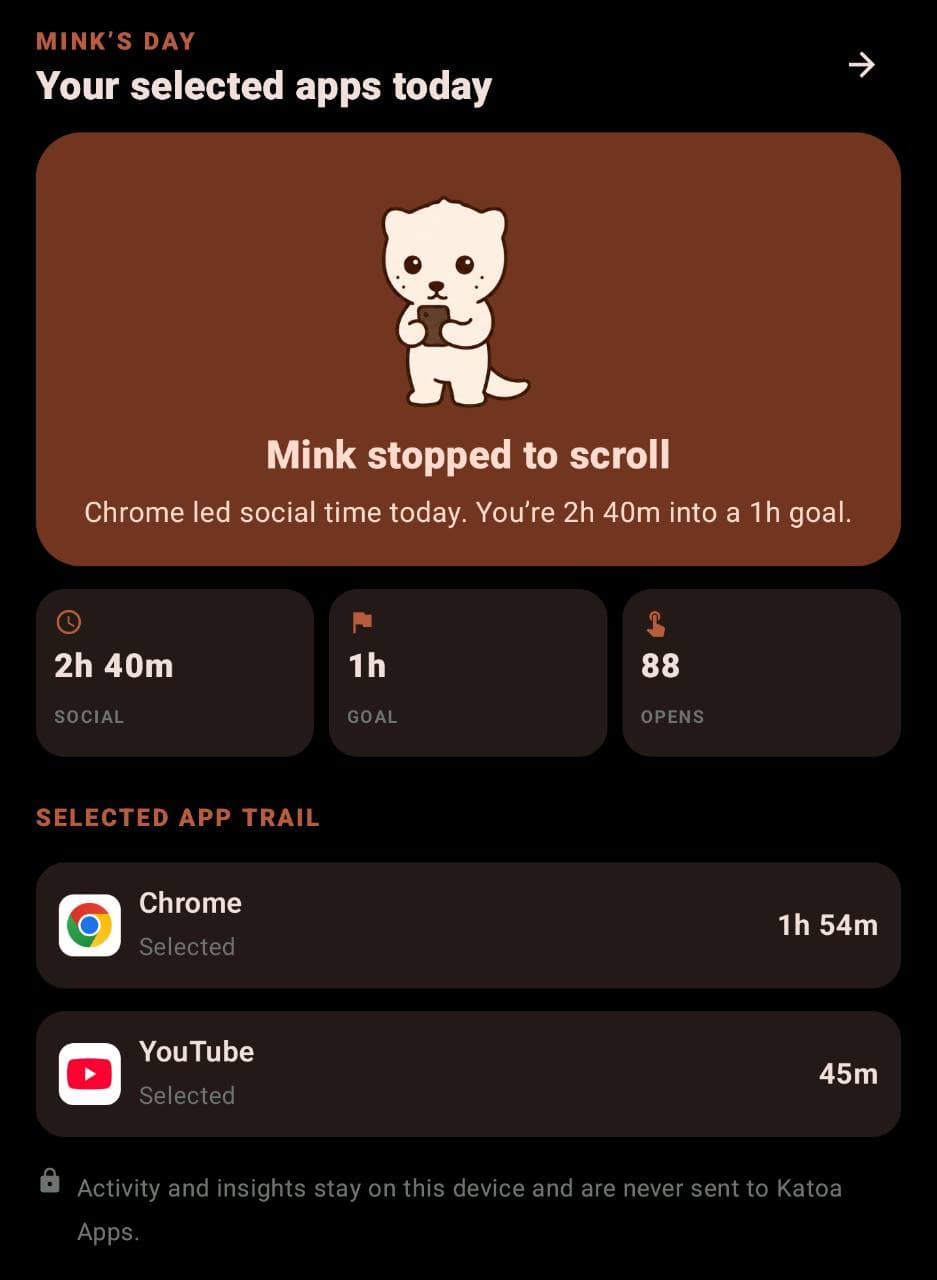
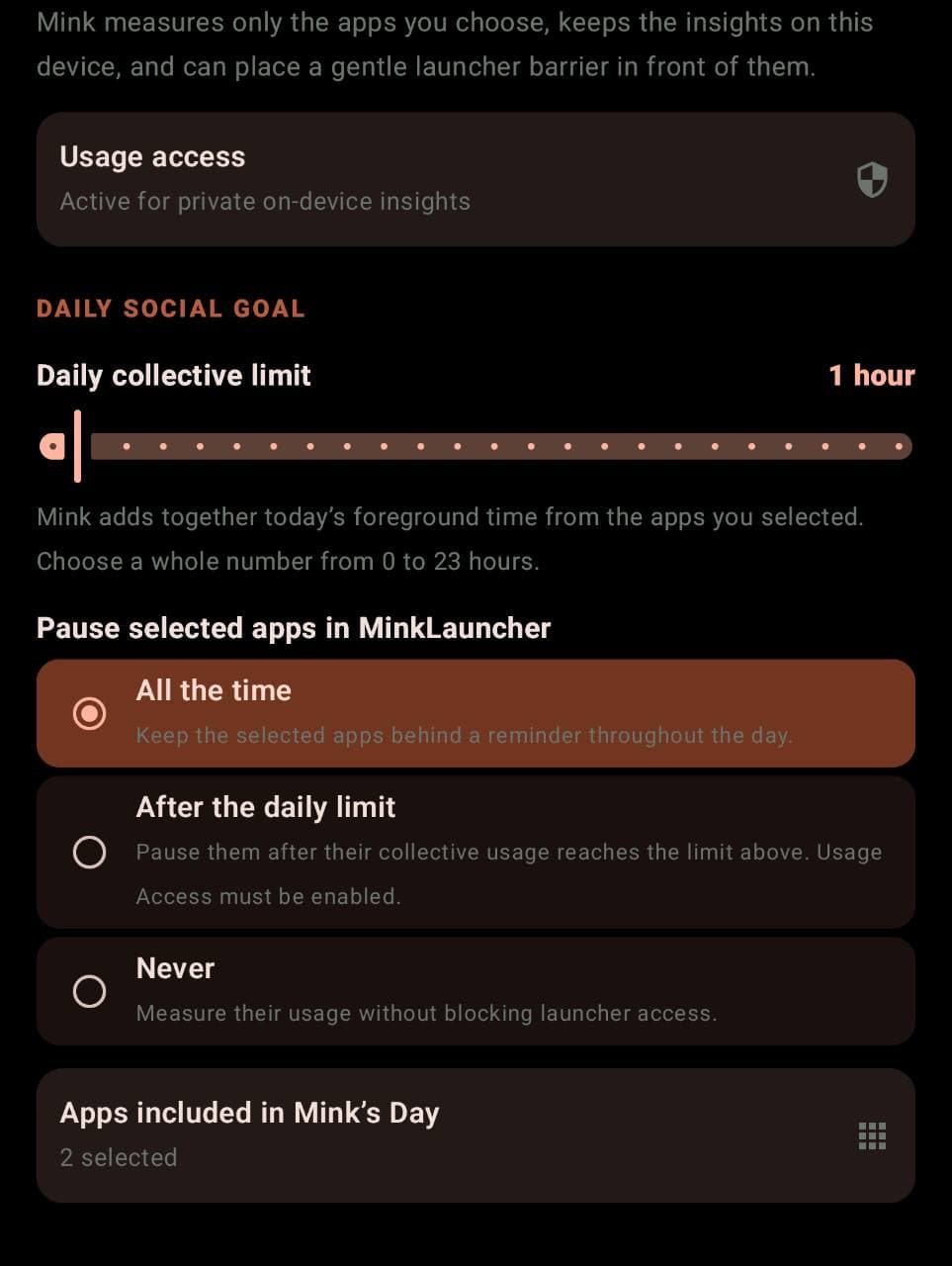
Mink’s Day
Choose the apps. Set the limit.
Pick the apps you want to spend less time in and set a collective daily limit from 0 to 23 hours. Pause them all day or only after the limit is reached. Paused apps disappear from app search and the app drawer while shortcut tiles can remain visible with a red reminder.
No account. No analytics.
Your launcher data
stays on your phone.
MinkLauncher stores your shortcuts, to-dos, contact card, folders, and settings locally. It hands text or an action to another app only after you choose where it should go.
GitHub and F-Droid builds currently use different signing keys. Switching channels requires uninstalling the current app first and clears its local data. Export a backup before switching, then restore it after installation.
How to install the GitHub APK
- Download the APK. Tap “Download from GitHub” and approve the browser download if asked.
- Open the download. Tap it in your browser or open it from Downloads.
- Allow this source. If Android blocks the install, open Settings and enable Allow from this source for the browser or file manager.
- Return and install. Go back to the APK, tap Install, and review any Android or Play Protect message.
- Choose your launcher. Press Home and select MinkLauncher OpenSource, or open Settings → Apps → Default apps → Home app.
- Unlock Conversations if Android disables Notification access. On Android 13 or newer, open Android Settings → Apps → MinkLauncher OpenSource, open the top-right menu on the main App info page, and tap Allow restricted settings. Confirm with your device lock, then return to MinkLauncher OpenSource → Settings → Permissions → Conversations. If the Notification access switch is greyed out, back out of that screen before looking for the App info menu.
Why this extra step? Android restricts sensitive settings for some apps installed outside an app store. Conversations uses Notification access only to show and reply through compatible message notifications. Read Google’s restricted-settings guidance.
For extra safety, return to Settings → Apps → Special app access → Install unknown apps and disable Allow from this source after installation. Menu names vary by phone.